The new Stable release of Lens Desktop is here.
To ensure a smooth transition and minimize disruption we’ll start by rolling out the update to a small portion of our users, then incrementally increasing this number until all users have access to the update. If you have not received the update and wish to try it out, you can download this version manually at Download — Lens
Key Features
Ask AI about whatever you are looking at
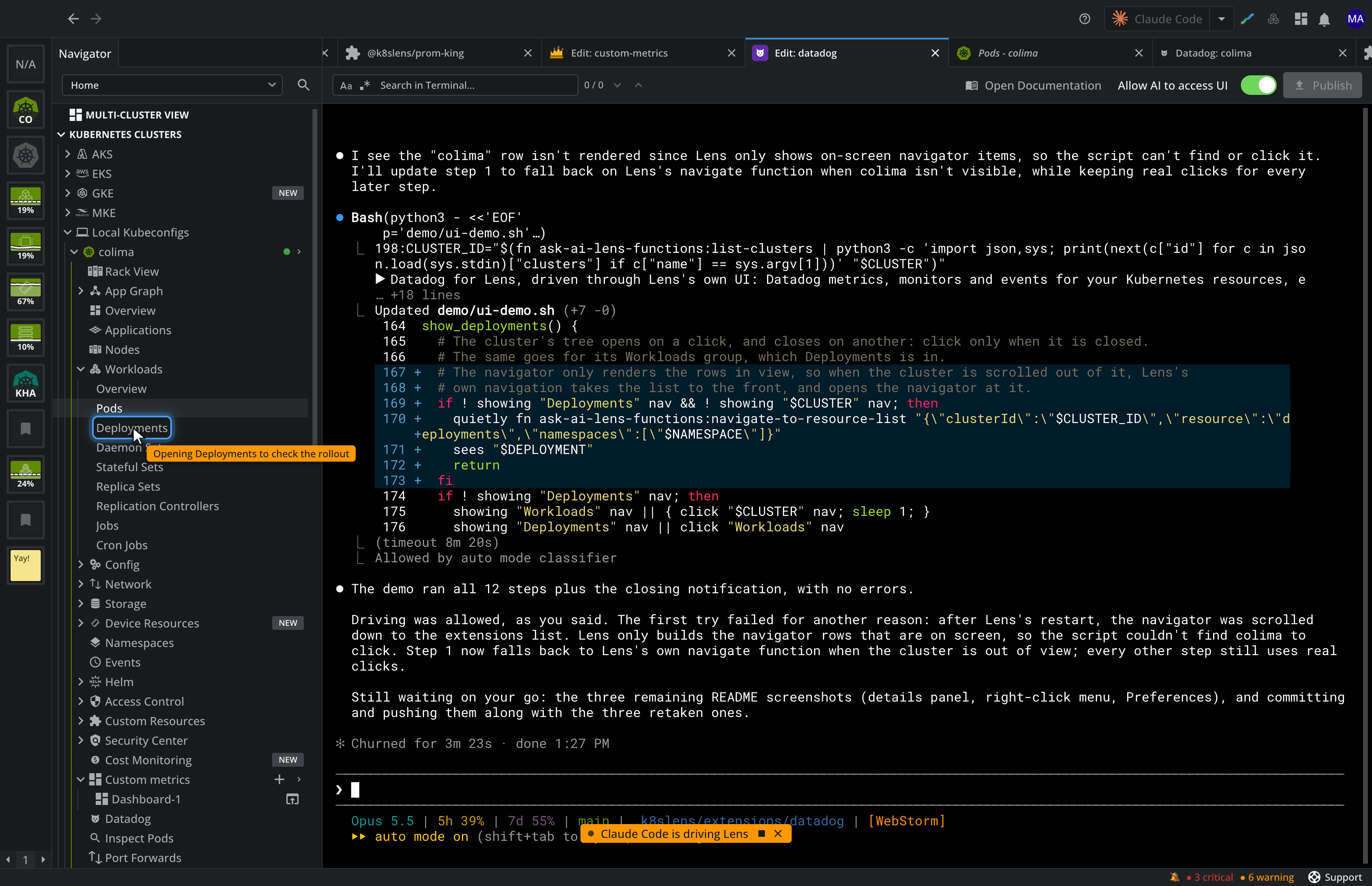
Any Ask AI conversation can now see what you see in Lens, and explain it right where you are. Turn on Allow AI to access UI on the conversation’s toolbar, then ask: “Explain what I’m looking at right now.” The tool reads the screen you have in front of you, so the answer is about your cluster, your view and what you have selected.
It can show you around too. Ask it to take you somewhere, or to walk you through something, and it drives Lens while you watch: a pointer glides to what it is about to click, a ring marks the target, and a few words by the pointer say why. A pill at the bottom of the window names the tool while it drives and lets you set the pace, from half speed to five times. Click anywhere to take the wheel back, and Return brings you to where you were before it set off. When the tool is done, it says what it did.
Before a tool sees your screen for the first time, Lens asks you once. Screenshots and the text on screen go to the tool and the AI provider behind it, so names, logs and secrets on screen go with them. The setup wizard asks the same question on its AI tool access step, and the default lives under AI Tools in the Extensions preferences. It comes with a Lens Cloud license that includes it, and organizations can turn it off in Lens Cloud.
The terminal an extension is developed in is an Ask AI conversation as well, so the tool building your extension can see it running in Lens and offers to take the screenshots for its README. Ask AI is a premium feature.
Ask AI works in Lens
Your AI tool, such as Claude Code, can now do things in Lens for you, not only in your cluster. It can take you to any resource or list, open pod logs or a shell in a dock tab, run Lens commands, query Prometheus, read what a cluster costs, start port forwards, check vulnerabilities, pin clusters to the hotbar and find extensions. For changes that are yours to make, such as YAML edits, Helm installs, upgrades and rollbacks, it opens the editor or dialog in Lens for you to review.
Try asking:
- “What does this cluster cost, and where could we save?”
- “Show me the logs of the failing pod in Lens.”
- “Upgrade the ingress-nginx release to the latest chart, and let me review it first.”
- “Forward the Grafana service to my machine and open it in the browser.”
- “Which containers in this cluster have critical vulnerabilities?”
- “Take me to the Deployments in the payments namespace.”
- “Is there a Lens extension for Flux?”
Ask AI is a premium feature.
Enhancements
- Antigravity CLI, Google’s successor to Gemini CLI, takes Gemini’s place among the AI tools. Lens finds it as
agyon your PATH. If Gemini CLI was your chosen tool, choose a tool again in Preferences - A published extension’s icon, banner and README screenshots come from the package it was published as, and load as you scroll to them, so screenshots show for every extension and a long Marketplace page opens faster
- The Helm repositories in Preferences are listed at once from your local Helm configuration, instead of after every repository has answered over the network
- A kubeconfig with a context, cluster or user Lens cannot use now says which entry and why: the paste dialog stays open and names it instead of reporting success, and a synced file logs a warning per skipped entry. An empty section, which kubectl writes as
null, is no longer reported as a mistake - Web links printed in a terminal open in your browser, Command with an arrow key or Backspace does on macOS what it does in Terminal.app, and a terminal keeps its size while the dock is collapsed
- Opening a node shell on a node whose operating system has no shell, such as Bottlerocket, says so and points to SSM or SSH instead of failing with a cryptic error
- MKE is shown for an airgapped license that includes it
Bug Fixes
- Lens no longer retries nonstop when it cannot list the clusters of a Google Cloud project. A failing project is now tried again once a minute
- A namespace created after the cluster connected stays selected in views opened afterwards, instead of each new view falling back to default
- Clicking a namespace in a resource list filters the list it was clicked in; after a few navigations it no longer did
- The Nodes list showed memory usage far too high on VictoriaMetrics, often above 100%. Its Memory and Disk tooltips show the bytes in use instead of N/A, and the metric columns sort by value
- A resource deleted while you were looking elsewhere no longer lingers in its list when you come back; it used to stay until Lens was restarted
- In a narrow navigator an AWS profile’s name ends in an ellipsis instead of disappearing, and its Sign in required label keeps to one line with the lock and the arrow in view
- Activating a dock tab closes the details panel, as a click anywhere else does
- Codex CLI launched from Lens can reach Lens from inside its sandbox, so the functions Lens gives it work without a permission prompt. When a tool’s sandbox does block Lens, the scripts say so and how to run them
- Dependencies with published security advisories were updated